How to use your tern app
Details
Tern Travel App: Step-by-Step Guide (Simple & Easy)
To make your travel experience seamless, I’ve partnered with the TERN, a mobile platform designed to keep your itinerary at your fingertips. Once downloaded, you’ll be able to view your trip details, schedules, and updates in real time.
✨ Benefits for Guests
- Offline Access: Your itinerary stays on your phone even without internet connection.
- Easy Navigation: Quickly check daily activities, lodging details, and dining options.
- Real‑Time Updates: Receive any changes or notices directly in the app.
- Convenience: Everything you need for your trip is organized in one place.
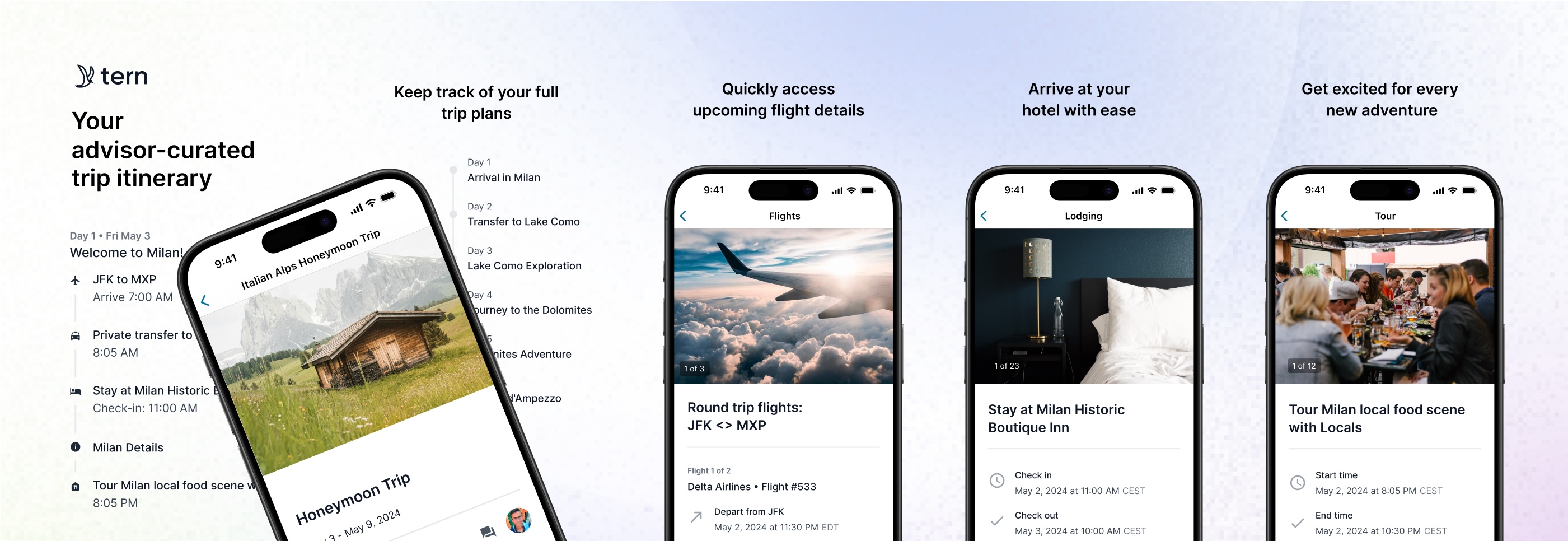
I recommend downloading the TERN app before departure to ensure smooth access to your itinerary.
Before You Start (2 Quick Tips)
- Use Wi-Fi if you can (it’s usually faster and avoids data charges).
- If you ever get stuck, message your travel advisor inside the app (steps included below). You won’t be bothering me—this is what I'm here for.
1) ⬇️Download the Tern Travel App & Log In
- Open your App Store
- iPhone/iPad: App Store
- Android: Google Play Store
- In the search bar, type “Tern Travel”
- Tap Download / Install
- Open the app
- Log in using the email and password you were given
- If you don’t remember your password, tap “Forgot Password” and follow the prompts.
Helpful note: If you don’t see the email with your login details, check your Spam/Junk folder.
2) 🔍Find (Access) Your Itinerary
Once you’re logged in:
- Look for a button or tab that says Itinerary, Trips, or My Trips
- Tap your trip name (for example: “Italy – May 2026”)
- You’ll now see your itinerary—organized by date
What you can usually do here:
- See the full itinerary
- See day-by-day plans
- View hotel, flight, and activity details
- Check times, addresses, and notes
- See pricing with options for your trip proposal
3) 📖Review Your Trip Details Without Feeling Overwhelmed
When viewing the itinerary:
- Start with the first day
- Tap into one item at a time (hotel, transfer, tour, dinner)
- Look for:
- Time
- Location / Address
- Notes from your advisor
- What’s included
Tip: If something looks confusing, don’t worry—just message your advisor and say, “Can you explain this part?”
4) ☑️Select Options for Your Trip (Choose What You Want)
Your advisor may send you choices—like hotel options, tours, room types, or upgrades.
To select options:
- Open your trip
- Go to Select Preferences in the green box
- Tap view details to read about that option
- If you like that option click the green box that say Select Option
- When you've selected all the options you like click Approve Selections at the bottom of the page
- If you're unsure or want to wait just scroll to the bottom and click Choose Later
Common selections clients make:
- Hotel choice (Comfort / Select / Signature)
- Room type (King, Double, Suite)
- Activities (guided tour vs. free time)
- Add-ons (airport transfer, extra night)
Tip: If you’re unsure, choose your top choice and message your advisor:
“Here’s what I picked—does this fit our trip best?”
5) ✅Approve Your Itinerary (Your “Yes, This Looks Right” Step)
Approval tells your advisor you’re ready to move forward.
- Open your trip itinerary
- Look for the button that says:
- Approve Itinerary
- Tap the approval button
- If prompted, confirm by tapping Yes / Confirm
Important: Approving usually means:
“This plan looks right—please proceed to the next step.”
(If you want changes first, message your advisor instead of approving.)
6) 💳Authorize Payments (How to Allow Booking)
When it’s time to pay deposits or authorize booking, the app will guide you.
- Open your trip
- Go to Authorize Payments in the green box
- Review the payment details carefully:
- What the payment is for
- Amount
- Due date (if shown)
- Click Adjust Amount and enter the amount you want to authorize (Not available if full amount is due)
- Enter you Credit Card Information
- Fill out the Complete Authorization section
- Click the Submit Authorization button at the bottom of the page
Safety reminder: Only authorize payments if:
- The amount looks correct, and
- You’re comfortable moving forward
If anything looks unfamiliar, message your advisor:
“I’m on the payment screen—can you confirm this amount is correct before I approve?”
7) 💬Message Your Travel Advisor Directly in the App
This is the easiest way to get help—no emailing needed.
- Open the app
- Tap Message Advisor in the thin green box under my info
- Open your trip conversation
- Type your message and tap Submit
Good messages to send (simple and clear):
- “Can you explain this part of the itinerary?”
- “I can’t find the approval button—where should I tap?”
- “Please confirm before I authorize payment.”
- “Can we swap this activity for something slower/easier?”
🪛Quick Troubleshooting (Common Issues)
If you can’t log in:
- Try Forgot Password
- Double-check your email spelling
- Turn Wi-Fi on/off and try again
If you don’t see your trip:
- Make sure you’re logged into the correct email
- Close the app completely and reopen it
- Message your advisor: “My trip isn’t showing—can you resend access?”
If buttons are hard to see:
- Increase text size on your phone (Settings → Display/Text Size)
- Turn your phone sideways for a larger view
- Ask your advisor to guide you step-by-step in chat
If at any point you feel stuck, tap Message Advisor and tell your me exactly what you’re seeing on your screen (or send a screenshot). You’re never expected to figure it out alone—we’ll guide you through it calmly and step-by-step.